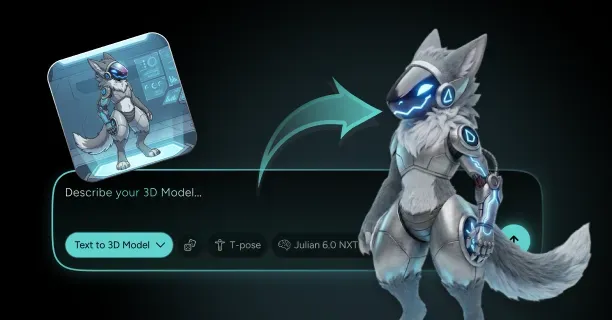
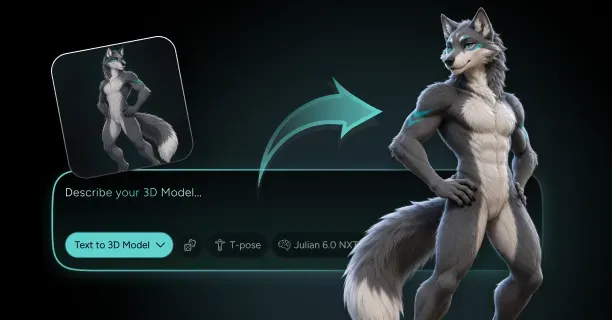
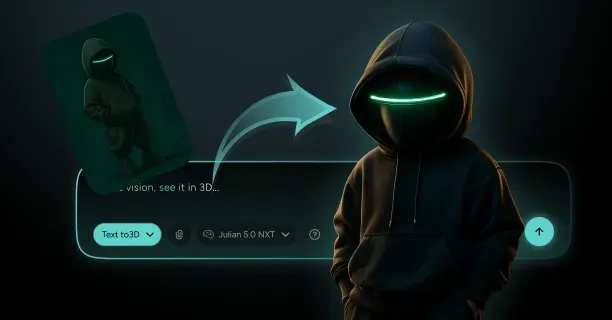
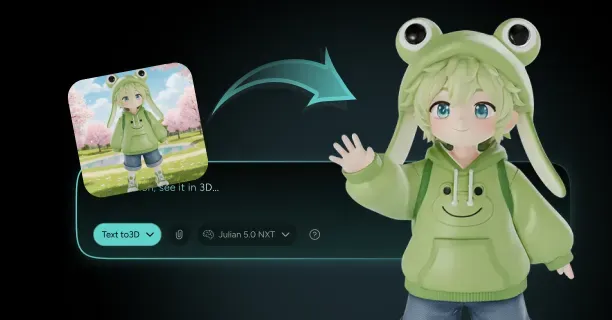
How Do You Generate A VRChat 3D Avatar From Images?
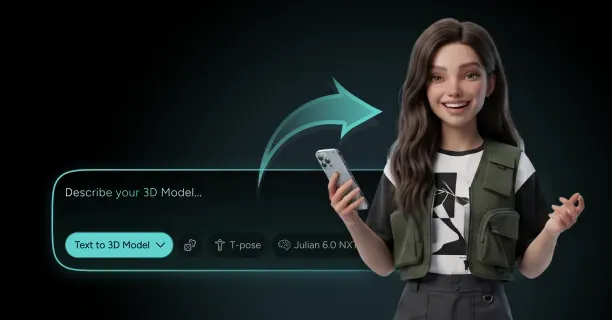
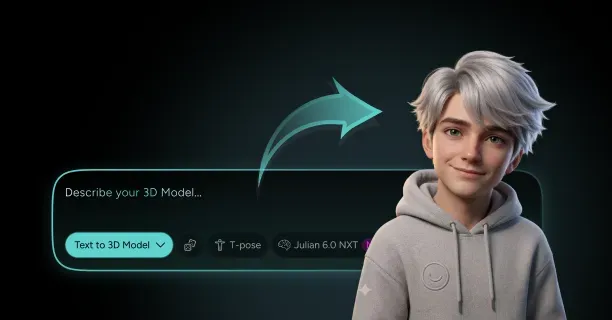
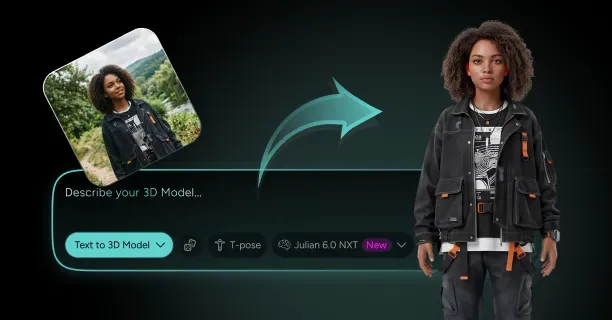
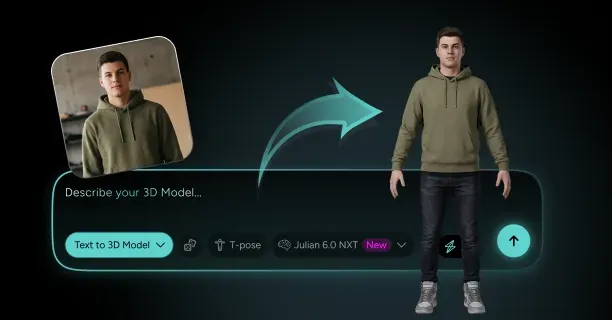
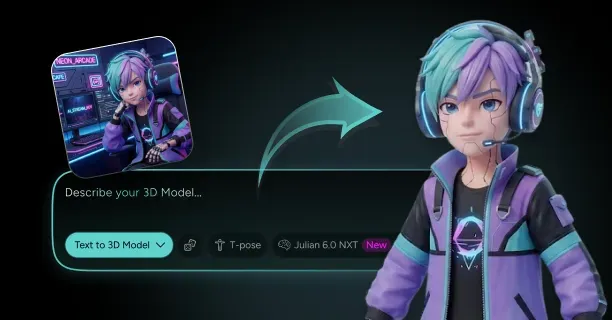
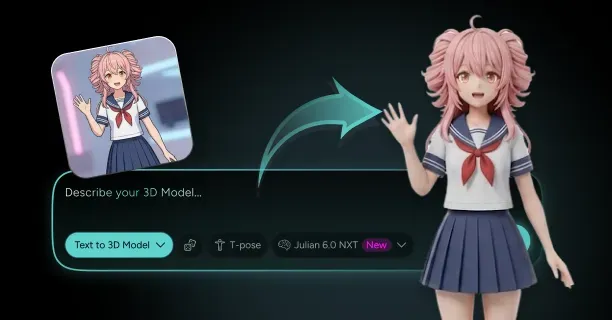
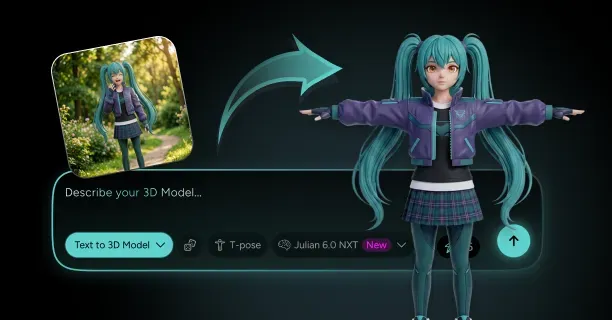
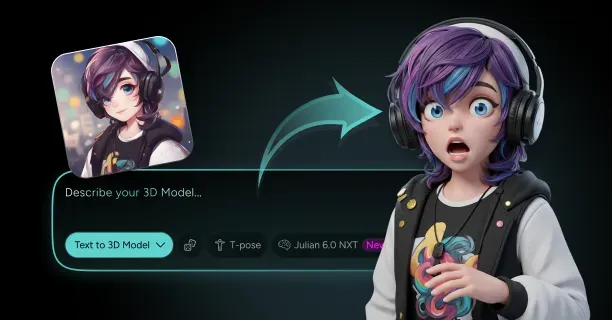
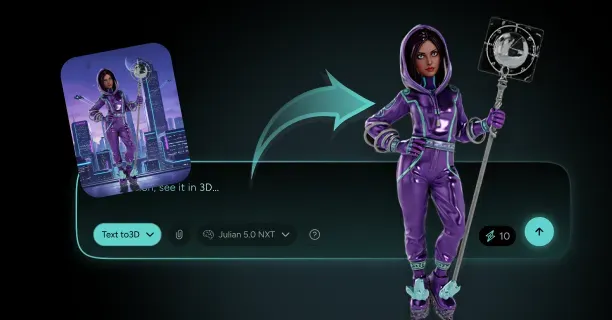
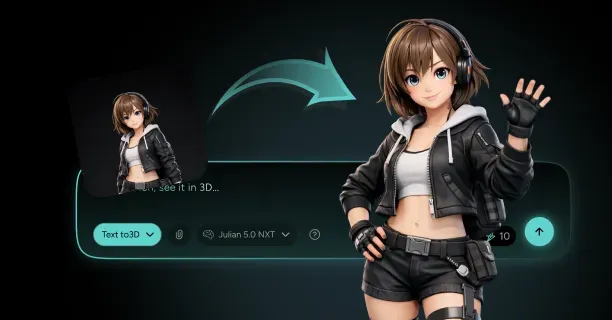
You generate a VRChat 3D avatar from images by uploading reference photos to an AI-powered platform that reconstructs depth and geometry automatically, sculpting manually in 3D software using images as visual guides, or merging AI-generated heads with pre-rigged avatar bodies through kitbashing workflows.
Creating VRChat avatars from images involves three main production methods that balance automation speed, artistic control, and technical complexity.
- Single-image 3D reconstruction delivers the fastest results, where machine learning algorithms analyze photographs to extract volumetric data and generate complete 3D meshes within minutes
- Manual 3D sculpting provides maximum creative control by using images as reference planes while building geometry from basic shapes in professional software packages like Blender, ZBrush, or Maya
- Kitbashing accelerates production timelines by combining custom-generated heads with pre-rigged VRChat avatar bodies, merging automation benefits with targeted manual refinement
AI-Powered Single-Image Reconstruction
AI-powered avatar generators employ convolutional neural networks to reconstruct three-dimensional shapes from flat photographs by analyzing facial landmarks, depth cues, and textural gradients. Upload a single front-facing image, and the neural network infers volumetric structure by matching the uploaded photo against training datasets containing millions of 3D face scans.
| Platform | Processing Time | Accuracy | Features |
|---|---|---|---|
| Ready Player Me | 15 seconds - 3 minutes | 95% sRGB coverage | 68-194 facial landmarks |
| Threedium | 15 seconds - 3 minutes | 2-5% deviation | RGB channels, edge detection |
Ready Player Me, an AI avatar generation platform, processes selfies to customize avatar faces automatically, transferring facial features like intercanthal distance, nasal bridge elevation, and mandibular angle onto standardized 3D templates.
The reconstruction algorithm identifies and extracts 68 to 194 facial landmarks depending on the neural network architecture (such as ResNet, MobileNet, or custom CNN architectures), then morphs a base mesh to match the extracted landmark coordinate positions.
Threedium’s AI processes and analyzes reference images to produce VRChat-compatible avatars by processing:
- RGB color channels
- Canny edge detection data developed by John F. Canny
- Semantic segmentation masks identifying distinct facial regions like eyes, nose, mouth, and hairline
The machine learning model estimates hidden geometry (areas invisible in the photograph such as ear backs or skull curvature) by inferring plausible structures based on statistical patterns learned from large-scale 3D facial scan databases such as the FaceWarehouse or 3DFAW datasets during training.
Users receive a watertight 3D mesh (a mesh with no holes or non-manifold geometry) with automatically generated UV coordinates and diffuse texture maps extracted from source photograph pixel data. Threedium’s AI system ensures visual consistency by achieving:
- Color accuracy within 95% sRGB gamut coverage
- Feature proportions within 2-5% deviation from photographic measurements
Photo-to-avatar workflows process diverse input types including:
- Smartphone selfies
- Character illustrations
- Anime-style artwork (Japanese animation-inspired illustrations)
- Concept art sketches
Users should upload high-resolution images with minimum 1024×1024 pixel dimensions (1 megapixel) to ensure the AI detects and captures fine details like skin pores, individual hair strands, and accessory geometry with sub-millimeter precision.
Manual 3D Sculpting From Image References
Manual 3D sculpting provides artists with precise creative control over final models by enabling artistic interpretation of reference images rather than the limitations imposed by automated AI reconstruction algorithms. Artists should position photographs on reference planes within Blender (open-source 3D creation software) or ZBrush (digital sculpting software by Pixologic) viewports to guide mesh shaping and ensure proportional accuracy throughout the modeling process.
Artists start with basic shapes:
- UV spheres for heads
- Cylinders for necks
- Cubes for torsos
Then progressively incorporate geometric detail through:
- Subdivision surface modifiers (algorithms that smooth polygon meshes)
- Extrusion operations
- Digital sculpting brushes that simulate clay manipulation techniques
Blender offers non-destructive sculpting workflows where artists work on high-resolution meshes containing 2 to 10 million polygons, then perform retopology (the process of recreating mesh topology for optimal deformation) to create clean animation-ready geometry with optimized edge flow.
Artists load front orthographic, side profile, and three-quarter view reference images as background overlays, aligning vertex positions to match photographic proportions while maintaining proper edge loops for facial deformation during blend shape animations.
The sculpting process encompasses establishing primary forms first:
- Cranial vault (skull cap)
- Zygomatic arches (cheekbones)
- Mandibular body (jaw bone)
Before refining secondary details like:
- Palpebral fissures (eye openings)
- Nasal alae (nostril wings)
- Vermillion borders (lip edges)
ZBrush provides DynaMesh (Pixologic’s dynamic tessellation technology) generating adaptive topology during sculpting and ZRemesher (Pixologic’s automatic retopology system) creating production-ready polygon flow automatically.
Artists generate texture maps from reference photographs through projection painting workflows (a technique that projects 2D images onto 3D geometry), where 2D images project onto 3D surfaces and bake into UV-mapped textures preserving photographic detail while accounting for three-dimensional curvature and perspective foreshortening.
| Method | Time Required | Detail Level | Best For |
|---|---|---|---|
| Manual Sculpting | 8-40 hours | Highest | Stylized characters, fantasy designs |
| AI Reconstruction | 15 seconds - 3 minutes | Medium-High | Standard human avatars |
| Kitbashing | 4-8 hours | Medium-High | Rapid iterations |
Manual sculpting workflows require 8 to 40 hours of active work time depending on target detail level, anatomical complexity, and artist proficiency, generating fully customized avatars matching exact creative specifications.
Kitbashing Custom Heads With Avatar Bodies
Kitbashing integrates custom-generated heads with pre-made avatar bodies to accelerate production while preserving personalized facial characteristics. Artists create only the head portion representing 15-25% of total avatar geometry, then connect the custom head to pre-rigged VRChat avatar bases already including:
- Body meshes
- Skeletal armatures with 56+ bones
- Weight painting for smooth deformation during inverse kinematics (IK)
VRChat avatar bases offer standardized body proportions, bone hierarchies following Unity’s standardized humanoid avatar rigging system, and blend shape configurations guaranteeing compatibility with platform features like:
- Full-body tracking
- Finger tracking
- Eye movement systems
Artists select bases matching the creator’s desired aesthetics:
- Anime-styled with exaggerated proportions
- Realistic with anatomically accurate musculature
- Chibi (a Japanese art style featuring small, cute characters with oversized heads) with super-deformed ratios
- Anthropomorphic (having human characteristics applied to non-human entities) with animal characteristics
The attachment process involves aligning neck boundary vertices between custom heads and body bases, combining meshes through Boolean union operations (CSG operations that combine two meshes into one), and blending weight paint values at connection seams.
AI-generated heads combine seamlessly with commercial avatar bodies by adhering to:
- Vertex density targets of 150-300 vertices per square centimeter
- UV layout conventions placing facial features in upper texture quadrants
Artists should modify custom head scale and position to align:
- Pupil height at 1.6-1.7 meters (average human eye height) from ground plane
- Neck diameter corresponding to clavicle width
- Temporal bone placement aligning with shoulder joint positions
Threedium’s workflow incorporates automatic neck joint alignment positioning generated heads correctly relative to standard VRChat armatures, decreasing manual adjustment time from 30-45 minutes to under 5 minutes.
The kitbashing hybrid approach reduces avatar creation time from 2-4 weeks to 4-8 hours (approximately 90-95% time savings) by using pre-built assets for body components while concentrating creative effort on distinctive facial features and hair styling.
Choosing Between Generation Methods
Selection of the appropriate method is determined by 3D software proficiency, available production time, and required customization depth.
| Method | Proficiency Required | Time Investment | Customization Level |
|---|---|---|---|
| AI-Powered | Minimal | 1-5 minutes | Low-Medium |
| Manual Sculpting | High | 8-40 hours | Maximum |
| Kitbashing | Medium | 4-8 hours | Medium-High |
AI-powered generators require minimal 3D modeling knowledge beyond basic file import/export operations and produce results within 1-5 minutes, making AI-powered generators accessible for beginners and rapid prototyping scenarios testing multiple design concepts.
Users sacrifice fine-grained control over polygon distribution and proportional adjustments but obtain production speed and consistency across different VR platforms and devices.
Manual sculpting requires proficiency with:
- Subdivision surface modeling
- UV unwrapping workflows
- Artistic anatomy knowledge spanning osteology (the study of bone structure) and myology (the study of muscle structure)
But generates completely unique designs precisely matching creative intent. Artists dedicate 8-40 hours per avatar but attain results impossible through automated reconstruction, particularly for:
- Non-human characters
- Fantasy creatures
- Highly stylized aesthetics with exaggerated proportions outside human anatomical norms
Kitbashing optimizes the balance between automation efficiency and customization flexibility by integrating AI-generated or manually sculpted heads with body bases that have been tested and validated for VRChat compatibility containing pre-tested rigging systems.
The kitbashing method enables artists to iterate rapidly, evaluating 5-10 head designs on identical body bases within single production days without rebuilding rigging, weight painting, and animation systems.
Image quality influences generation success rates across AI reconstruction, manual sculpting, and kitbashing methods. Users should supply:
- Well-lit photographs with 5000K-6500K color temperature (daylight color temperature range)
- High-resolution captures exceeding 2048×2048 pixels (minimum 4 megapixels)
- Neutral facial expressions avoiding muscle tension
- Minimal occlusion from hair strands or accessories
For optimal AI reconstruction results achieving 90%+ geometric accuracy.
Technical Requirements For Image-Based Generation
VRChat avatars generated from images must comply with platform specifications for polygon counts, texture resolutions, and skeletal hierarchies guaranteeing real-time rendering at interactive frame rates (typically 60-90 FPS).
Developers should target polygon budgets:
| Performance Ranking | Triangle Count | Target Hardware |
|---|---|---|
| Excellent | 7,500 triangles | High-end GPUs |
| Good | 20,000 triangles | Mid-range GPUs |
| Medium | 70,000 triangles | GTX 1060, RX 580 |
AI reconstruction generates meshes containing 15,000 to 35,000 triangles, necessitating decimation through quadric edge collapse (a mesh simplification algorithm that minimizes geometric error) or manual retopology to reach optimal performance tiers maintaining 90 frames per second.
Manual sculpting enables precise polygon distribution, concentrating triangle density in:
- Visible facial areas averaging 8,000-12,000 polygons
- Hidden regions like back of the skull (occipital region) or neck underside to 500-1,000 polygons
Texture maps extracted from reference images follow power-of-two dimensions (texture resolutions where width and height are powers of 2):
- 1024×1024
- 2048×2048
- 4096×4096 pixels
For efficient GPU memory usage and automatic mipmap generation (pre-calculated lower-resolution versions of textures) minimizing texture sampling artifacts at distance.
Artists generate texture map types from source photographs:
- Diffuse albedo (base color)
- Normal tangent-space (surface detail)
- Metallic (metal/non-metal)
- Roughness (surface smoothness)
Threedium’s platform adjusts texture resolution automatically based on avatar polygon density and intended use cases, balancing visual quality preservation against VRAM footprints maintaining within VRChat’s 40 megabytes of video memory compressed texture limit.
Skeletal rigging links generated geometry to VRChat’s humanoid bone structure containing 56+ bones facilitating animations and player movement controlled by inverse kinematics solvers. The rigging process maps custom avatar meshes to standardized armatures including:
- Head bone
- Neck bone
- Spine with 3 segments (lower/middle/upper spine)
- Chest bone
- Upper chest bone
- Limb bones (shoulder, upper arm, lower arm, hand)
- Finger bones with 3 segments per digit (metacarpal/proximal/distal phalanges)
Optimizing Generated Avatars For VRChat Performance
Generated avatars experience optimization procedures meeting VRChat’s performance guidelines and guaranteeing smooth rendering in multiplayer environments hosting 40+ players simultaneously.
The optimization process decreases polygon counts through decimation algorithms preserving silhouette contours and major features while eliminating imperceptible detail contributing less than 1% visual difference, typically achieving 30-50% triangle reduction.
Topology cleanup eliminates:
- Non-manifold geometry (geometry with edges shared by more than two faces)
- Overlapping coplanar faces
- Degenerate triangles (triangles with zero or near-zero area)
When creating VRChat avatars from images, Threedium’s AI system modifies mesh density and texture resolution automatically to balance visual fidelity with real-time social platform requirements, guaranteeing avatars maintain 90+ FPS performance in VRChat rooms with many simultaneous users.
Texture atlasing consolidates multiple material textures into single unified textures, reducing rendering commands sent to the GPU from 8-15 per avatar to 1-3 total, enhancing rendering efficiency by 40-60% in situations where graphics card performance limits frame rate.
The optimization process merges separate textures for:
- Skin diffuse
- Clothing albedo
- Hair color
- Accessory details
Into unified 2048×2048 or 4096×4096 atlases with corresponding UV coordinate transformations preserving texture pixel density consistency.
Mesh combination consolidates separate geometric elements (head mesh, body mesh, accessory objects) into single continuous meshes where animation requirements permit, reducing object counts from 15-30 separate meshes to 3-5 combined meshes and minimizing CPU processing required to update object positions and rotations each frame by 60-75%.
Optimization practices keep separate meshes only when:
- Toggle animations (animations that show/hide mesh components)
- Dynamic bone physics (physics simulation for secondary motion like hair or cloth)
- Material variation systems like clothing color customization require separation
Performance testing verifies within VRChat Software Development Kit Control Panel that optimized avatars meet target performance rankings before upload, enabling identification and resolution of bottlenecks like:
- Excessive Unity component for rendering deformable meshes exceeding 8 per avatar
- Unoptimized shader instruction counts surpassing 200 operations
- Missing Level of Detail (progressive mesh simplification at distance) configurations for distance-based detail reduction
How Do You Edit A Generated Avatar Mesh And Textures After Image-To-3D?
You edit a generated avatar mesh and textures after image-to-3D by importing the FBX or OBJ file into 3D modeling software like Blender, optimizing mesh topology for VRChat’s polygon limits, correcting UV mapping errors, and enhancing textures using Substance Painter or Photoshop. This systematic workflow transforms raw AI output into a polished, performance-optimized avatar ready for social VR platforms through mesh correction and texture enhancement.
After you generate your VRChat avatar from images, the mesh and textures require refinement to meet platform performance standards and achieve your desired aesthetic. Blender, an open-source 3D computer graphics software developed by the Blender Foundation, provides comprehensive tools for the entirety of the 3D asset creation pipeline: including modeling, texturing, rigging, and animation operations and functions as the avatar creator’s primary editing environment for VRChat avatar development. Import the generated FBX or OBJ file format into Blender to access the mesh geometry and associated texture maps. The imported model typically includes base color textures, normal maps, and roughness data that the AI generated from your reference image.
Topology Optimization
Your first editing task addresses topology optimization. Generated meshes often contain irregular polygon distribution that creates rendering inefficiencies in real-time VR environments. Examine the mesh in Edit Mode to identify problem areas where polygon density exceeds requirements or where edge loops fail to follow natural deformation paths.
The official VRChat Documentation on the Avatar Performance Ranking System defines and mandates 70,000 polygons as the maximum triangle count for achieving a ‘Good’ performance rank classification on PC VRChat desktop platforms, while Meta Quest standalone VR headset platforms mandate and restrict avatars to 20,000 polygons or fewer due to mobile hardware performance limitations.
Use Blender’s retopology tools to rebuild mesh sections with cleaner edge flow, ensuring vertices align with areas that deform during animation like:
- Shoulders
- Elbows
- Knees
ZBrush provides advanced remeshing capabilities for complex topology corrections. The 3D artist should export and transfer the generated avatar mesh from Blender to ZBrush digital sculpting software, then activate and apply the ZRemesher automated retopology algorithm to automatically generate clean production-ready topology with optimized edge flow based on polygroup guides that the artist manually paints and defines on the model surface to control mesh density distribution.
ZBrush’s DynaMesh feature lets you sculpt freely without worrying about polygon structure, then apply decimation to reduce the polygon count while preserving surface detail through normal map baking. The normal map baking process projects and transfers microscopic surface details from a high-polygon-count sculpted mesh (containing millions of triangles) to a performance-optimized low-polygon mesh via specialized texture maps, encoding and preserving fine surface angle information in 32-bit floating-point normal map files that provide sufficient color precision to prevent and eliminate visible banding artifacts (stepped color gradations) in the final rendered output.
UV Unwrapping Correction
UV unwrapping often requires correction after AI generation. AI-generated 3D models frequently contain critical UV mapping errors including:
- Overlapping UV coordinates (where multiple surface areas occupy identical texture space causing rendering conflicts)
- Inconsistent texel density (uneven texture resolution distribution measured in pixels per surface unit creating quality variations)
- Poor seam placement along visible surface areas
All of which produce and cause noticeable texture stretching artifacts (visual distortion where texture pixels elongate unnaturally across polygon surfaces). Select all faces in Blender’s UV Editing workspace and use Smart UV Project or manual unwrapping techniques to create clean UV layouts. Position UV seams along natural hiding spots like:
- The back of the head
- Underarms
- Inner legs
Where texture discontinuities remain less visible during typical VRChat interactions. Maintain consistent texel density across all UV islands to ensure uniform texture resolution, preventing some body parts from appearing blurry while others show excessive detail.
Texture Enhancement Workflow
Texture editing begins with analyzing the AI-generated material maps. Substance Painter allows painting directly onto the 3D model with real-time viewport feedback. The texture artist should import and initialize the topology-optimized mesh into Substance Painter (Adobe’s professional PBR texturing software), then load and configure the AI-generated:
- Base color map (surface albedo)
- Normal map (surface detail encoding)
- Roughness map (reflectivity control)
As foundational starting layers in the layer stack system for subsequent texture enhancement. The software’s PBR materials let you enhance surface properties with procedural texturing generators. Add wear patterns, fabric detail, and skin pores by stacking procedural masks that respond to mesh curvature and ambient occlusion data.
Adobe Photoshop provides pixel-level accuracy for facial textures requiring precise control. Export the base color texture from Substance Painter as a PNG or TGA texture format and open it in Photoshop for detailed painting. Create separate layers for:
- Skin tones
- Makeup
- Tattoos
- Facial features
Using adjustment layers to fine-tune color balance and saturation. The Clone Stamp and Healing Brush tools remove AI generation artifacts like asymmetrical features or texture seams that break immersion. Paint eye textures on separate UV islands, adding iris detail, pupil depth, and specular highlights that catch virtual lighting in VRChat environments.
Normal Map Refinement
Normal map editing enhances surface depth perception without adding geometry. Open the AI-generated normal map in Substance Painter and use height brushes to paint additional detail like:
- Clothing wrinkles
- Armor dents
- Skin texture
The software converts height information to tangent-space normal data that VRChat’s shaders interpret as surface angle variations. Adjust normal map intensity using layer opacity controls, balancing perceived depth against the performance cost of complex shader calculations. Overlay tileable normal map patterns from texture libraries for fabric materials, blending them with the base normal data using multiply or overlay blend modes.
Normal map baking from high-poly sculpts preserves fine detail on performance-optimized meshes. Create a high-resolution version of your avatar in ZBrush with sculpted pores, wrinkles, and fabric weave reaching several million polygons. Export this high-poly mesh alongside your game-ready low-poly version and use Substance Painter’s baking tools to project surface detail onto normal maps.
| Baking Parameter | Recommended Value | Purpose |
|---|---|---|
| Maximum frontal distance | 0.1 units | Prevent detail bleeding |
| Rear distance | 0.05 units | Control projection accuracy |
| Output format | 32-bit | Preserve detail precision |
The resulting 32-bit normal maps capture microscopic surface variations that enhance realism under dynamic VRChat lighting.
Material Property Control
Roughness and metallic maps control how surfaces reflect light under VRChat’s real-time rendering pipeline. Paint roughness variations in Substance Painter to differentiate material types:
- Smooth skin: low roughness values around 0.3
- Fabric clothing: higher values near 0.7 to scatter light diffusely
Metallic maps use binary values where metal surfaces receive pure white (1.0) and non-metals receive pure black (0.0), though slight gradients at material boundaries simulate edge wear. These PBR material properties ensure your avatar responds realistically to different lighting conditions across VRChat worlds.
Specular map painting controls highlight sharpness on reflective surfaces. Create a specular map in Substance Painter by painting:
- Bright values on smooth surfaces like eyes, lips, and polished metal
- Dark values on rough surfaces like fabric and matte skin
This map modulates the specular reflection intensity in VRChat’s shaders, creating realistic material differentiation. Use reference photographs of real materials under direct lighting to accurately reproduce specular response patterns, ensuring your avatar’s materials behave believably under VRChat’s point lights and directional sun lamps.
Rigging and Weight Painting
Autodesk Maya provides advanced rigging and weight painting tools for avatars requiring custom bone structures. The character rigger should import and load the topology-edited mesh into Autodesk Maya (professional 3D animation software developed by Autodesk Inc.), then attach and bind the mesh geometry to a VRChat-compatible humanoid skeleton structure (conforming to Unity’s Humanoid rig specifications with required bone naming conventions) using the smooth skin binding method, which automatically distributes vertex influence weights across multiple bones based on proximity to create smooth deformation gradients during animation.
The initial automatic weight distribution process (proximity-based vertex weight assignment performed by 3D software during mesh-to-skeleton binding) frequently produces and generates deformation artifacts visual errors in specific mesh areas where geometry deforms and distorts incorrectly during skeletal joint rotation animations, creating problems such as collapsed shoulder regions, unnaturally stretching elbow areas, or self-intersecting knee geometry that require manual weight painting correction to achieve natural character deformation.
Enter Maya’s Paint Skin Weights tool and manually adjust vertex influence values, ensuring:
- Shoulder joints rotate naturally without collapsing the chest geometry
- Knee bends maintain proper volume
- Mesh doesn’t intersect itself during deformation
Test deformations by rotating bones through their full range of motion, identifying and correcting areas where the mesh intersects itself or stretches unnaturally.
Facial Animation Setup
Blendshape creation for facial animation requires duplicating your base mesh and sculpting expression targets. The animator should model and sculpt separate blendshape morph targets for the five primary phoneme mouth shapes:
| Phoneme | Sound | Usage |
|---|---|---|
| A | ‘ah’ vowel sound | VRChat lip sync |
| E | ‘eh’ | Automated mouth movement |
| I | ‘ee’ | Real-time voice chat |
| O | ‘oh’ | Audio synchronization |
| U | ‘oo’ | Speech animation |
Which VRChat’s automated lip sync system analyzes from microphone audio input and automatically activates during real-time voice chat communication to synchronize avatar mouth movements with spoken words. Sculpt emotional expressions like:
- Smile
- Frown
- Surprise
- Anger
As additional blendshape targets, using Blender’s Sculpt Mode or ZBrush for organic deformation control. Each blendshape maintains the same vertex count and order as the base mesh, with only vertex positions changing to create the desired expression. Export these blendshapes as part of the FBX file format, ensuring Unity Engine preserves the animation data during avatar upload.
Material Organization
Material slot organization streamlines the shader assignment process in Unity Engine. The technical artist should organize and consolidate related texture maps into logical material group categories:
- Body skin textures (torso, arms, and legs)
- Face skin textures (requiring higher resolution for close-up visibility)
- Hair textures (requiring alpha transparency)
- Clothing textures (fabric materials)
- Accessories textures (props and attachments)
Where each distinct material category is assigned to separate material slots in the 3D software, enabling independent shader parameter adjustment, texture swapping, and optimization without affecting other avatar components. Ensure each material references the correct texture set by checking UV assignments in Blender’s Shading workspace, where you connect image texture nodes to Principled BSDF shader inputs for preview rendering.
Texture Resolution Optimization
Texture resolution optimization balances visual quality against VRChat’s memory constraints. Export base color and normal maps at different resolutions based on importance:
| Texture Type | Resolution | Usage |
|---|---|---|
| Primary body textures | 2048×2048 pixels | Close-up detail |
| Secondary accessories | 1024×1024 pixels | Medium detail |
| Small props | 512×512 pixels | Distant viewing |
The technical artist should configure and apply texture compression algorithms in Unity Engine (the game development platform powering VRChat’s rendering system) using:
- DXT5 block compression format (also called BC3, supporting RGB color plus 8-bit alpha channel) for color map textures containing transparency data like hair strands or glass materials
- DXT1 format (also called BC1, providing 6:1 compression ratio) for opaque texture maps without alpha channels
Significantly reducing VRAM file size consumption and improving avatar loading performance while preserving and maintaining acceptable visual fidelity compared to uncompressed source images. Unity Engine integration with VRChat SDK automatically validates texture sizes and compression settings during avatar upload.
Advanced Texturing Techniques
Ambient occlusion baking adds contact shadows that enhance depth perception in real-time rendering. The lighting artist should bake and generate an ambient occlusion map (a grayscale texture simulating soft contact shadows in surface crevices where ambient light has reduced access) in Blender’s baking system by configuring and defining the baking parameters with:
- Ray distance setting: 0.1 Blender units (defining the maximum distance occlusion calculation rays travel from surface points)
- Ray samples per pixel: 128 (controlling calculation quality to produce smooth shadow gradients while minimizing noise artifacts in the final texture)
The resulting grayscale texture shows darkening in crevices, folds, and contact points where surfaces meet. Multiply this ambient occlusion map with your base color texture in Substance Painter, creating subtle shadows that persist regardless of VRChat’s dynamic lighting conditions. This baked lighting information compensates for the lack of global illumination in real-time VR environments.
Emission maps create glowing elements like LED strips, magical effects, or cybernetic implants. The texture artist should paint and define emission areas in Substance Painter using pure white color values of RGB (255, 255, 255) in regions where maximum self-illumination glow intensity is desired for elements like LED strips or magical effects, then connect and assign the completed emission map texture to the emission channel parameter in Unity Engine’s (the game development platform powering VRChat) material shader system, which processes the emission data to render self-illuminated surfaces that glow independently of scene lighting conditions.
Control emission color and brightness through shader parameters, enabling dynamic effects like:
- Pulsing lights
- Color-shifting patterns through animation controllers
Limit emission map resolution to 512×512 pixels since glowing areas typically cover small surface regions, conserving texture memory for more critical base color and normal data.
Transparency and Alpha Control
Transparency handling requires alpha channel painting for elements like hair strands, glass visors, or flowing fabric. The texture artist should create and paint an alpha mask channel in Adobe Photoshop (professional raster graphics editing software) by painting and defining:
- White color values (alpha value 255 or 1.0 normalized) in fully opaque surface areas that should block background visibility
- Black color values (alpha value 0) in fully transparent regions that should allow complete background visibility
- Intermediate gray values (alpha range 1-254) in areas requiring partial transparency
Creating and enabling semi-transparency blending effects for materials like smoke, glass, or translucent fabric. Save this alpha channel embedded in your base color texture as a 32-bit PNG format that preserves the transparency data. Configure Unity Engine’s shader to use the alpha channel for:
- Cutout mode: for hard-edged elements like individual hair cards
- Fade mode: for soft materials like smoke or holographic projections
Seam and Detail Refinement
Seam correction eliminates visible texture boundaries where UV islands meet. The texture artist should activate and configure Substance Painter’s padding and dilation parameter settings (texture processing operations that extrapolate and extend pixel color data beyond UV island edge boundaries by repeating and pushing edge pixels outward into surrounding texture space) to eliminate and prevent black line seam artifacts visible dark streaks that appear along UV seam boundaries when GPU texture filtering and mipmapping processes sample unpainted or default-black pixels during real-time rendering in VRChat environments.
Increase padding to 8 or 16 pixels for textures that will be viewed at close range, ensuring mipmapping doesn’t introduce visible artifacts. Manually paint over problematic seams using the clone tool, sampling colors from adjacent areas to create seamless transitions across UV boundaries.
Detail map layering adds micro-surface variation without increasing base texture resolution. The texture artist should author and generate tileable detail normal maps (seamlessly repeating textures without visible edge seams) at a memory-efficient resolution of 256×256 pixels, depicting and encoding micro-surface patterns such as:
- Fabric weave (interlaced thread structures in textile materials)
- Skin pores (microscopic biological surface depressions)
- Metal grain patterns (directional surface structures from metallic manufacturing processes like brushing or forging)
To add high-frequency surface detail without increasing base texture memory consumption. Apply these detail maps in Unity Engine’s shader as a secondary normal map layer that tiles at higher frequency across the UV space, multiplying with the base normal map to combine macro and micro surface detail. This technique delivers close-up texture richness while keeping primary texture memory usage reasonable for VRChat’s performance requirements.
Color and Lighting Adjustments
Color correction ensures your avatar appears consistent across different VRChat world lighting conditions. Adjust base color saturation and value in Photoshop:
- Reducing overly saturated colors that look garish under bright lighting
- Brightening dark areas that become invisible in dimly lit environments
Target a middle-gray average luminance around 50% to maintain visibility across lighting extremes. Preview your textures under different lighting setups in Blender’s Shading workspace, using HDRI environment maps that simulate various VRChat world conditions from bright outdoor scenes to dark club environments.
Mesh Cleanup and Validation
Mesh cleanup removes duplicate vertices, overlapping faces, and non-manifold geometry that causes rendering errors. The 3D modeler should select and activate all mesh vertices (three-dimensional coordinate points defining mesh geometry) in Blender’s Edit Mode, then execute and apply the ‘Merge by Distance’ cleanup function with a precise threshold parameter of 0.0001 Blender units (typically representing 0.1 millimeters) to automatically merge and combine coincident points (overlapping or duplicate vertices occupying identical spatial coordinates) into single unified vertices, eliminating topology errors that cause rendering issues and improving overall mesh quality.
Run the Select Non-Manifold operator to identify:
- Edges connected to more than two faces
- Vertices connected to non-contiguous faces
Then manually repair these problem areas. Ensure all face normals point outward by selecting all faces and using Recalculate Outside, preventing inside-out rendering that creates invisible surfaces in VRChat.
Unity Export Preparation
Final optimization for Unity Engine integration involves organizing your scene hierarchy and naming conventions. Parent all mesh objects to a single root armature object named “Armature” to match VRChat SDK expectations. Name material slots descriptively like:
- “Body_Skin”
- “Face_Detail”
- “Hair_Alpha”
To simplify shader assignment in Unity. Apply all transforms in Blender using Ctrl+A before export, ensuring your avatar appears at correct scale and rotation when imported into Unity Engine.
The technical artist should export and save the prepared avatar as an FBX file (FilmBox format, the industry-standard 3D asset interchange format developed by Autodesk) with the following compatibility-ensuring parameters configured:
| Parameter | Setting | Purpose |
|---|---|---|
| Scale parameter | 1.0 | Unity scale factor maintaining original model dimensions |
| Apply Scalings | ‘FBX All’ mode | Baking object transforms into mesh geometry |
| Forward axis | ‘-Z Forward’ | Negative Z-axis pointing in object’s forward direction |
| Up axis | ‘Y Up’ | Positive Y-axis pointing upward |
All settings specifically configured to align with and match Unity Engine’s left-handed coordinate system convention used by VRChat’s avatar pipeline.
Avatar creators using the Threedium 3D content optimization platform (threedium.io) can automate and streamline the entire previously-described mesh and texture refinement workflow through Threedium’s proprietary integrated editing pipeline a unified software system that automatically optimizes and validates:
- Mesh topology (polygon distribution and edge flow)
- UV layouts (texture coordinate mapping)
- Material assignments (shader and texture connections)
To ensure full conformance with VRChat platform’s technical requirements including polygon count limits, material slot restrictions, and performance ranking standards. This prepared mesh and texture package integrates seamlessly with Unity Engine for shader configuration, physics setup, and final deployment through the VRChat SDK, while our topology cleanup tools and materials textures refinement systems ensure your VRChat avatars meet performance standards without manual intervention.