








How Do You Keep 3D Interior Assets & Models for Sims Games?
To keep 3D interior assets and models for Sims games, you install Custom Content (CC) .package files in the Mods folder at Documents\Electronic Arts\The Sims 4 and organize them using systematic subfolder structures that comply with the five-level nesting limit enforced by the game engine. You maintain consistent file naming conventions that preserve creator-assigned version numbers and set identifiers to facilitate rapid identification and streamlined updates. This structured approach maintains life-sim interior 3D assets accessible to The Sims 4 game engine, enabling you to manage extensive collections of custom furniture pieces, architectural elements, and decorative objects efficiently.
Central Repository: The Mods Folder
The Mods folder serves as the central repository for all custom 3D interior assets in The Sims 4. You access the Mods folder by navigating to your Documents directory, then Electronic Arts, then The Sims 4, where you find or create a folder named “Mods.” The Mods folder functions as the game’s designated location for reading player-created content, maintaining separation from core game files to prevent corruption of original Electronic Arts assets.
Key functions of the Mods folder:
- You place .package files containing furniture models, wall textures, flooring patterns, or architectural elements into the Mods folder structure when downloading them from Custom Content creators
- The Sims 4 game engine scans the Mods directory during startup, loading custom interior assets into the Build/Buy catalog and Create-A-Sim interface automatically
Understanding Subfolder Depth Limits
You must comprehend subfolder depth limits to prevent asset loading failures. The Sims 4 game engine processes .package files nested up to five subfolders deep within the Mods folder. This technical limitation, validated through extensive community testing and documented on Electronic Arts help forums, enables you to create folder structures like:
Mods\Furniture\Living Room\Sofas\Modern\Creator Name
Important Distinctions:
| File Type | Depth Limit | Example Path |
|---|---|---|
| Visual Models (.package) | 5 subfolders deep | Mods\Furniture\Living Room\Sofas\Modern\Creator Name |
| Script Mods (.ts4script) | 1 subfolder deep | Mods\Script Folder |
This organizational separation distinguishes visual models from functional scripts, such as interactive furniture pieces with custom animations that require both mesh files and behavioral code.
Resource.cfg Configuration
The Resource.cfg file configures how The Sims 4 scans your Mods folder hierarchy. You locate Resource.cfg in the main Mods directory, where the configuration file instructs the game engine how deep to scan subfolders.
The default Resource.cfg supports standard installations, but verifying Resource.cfg presence ensures assets load properly.
Resource.cfg contains directives that instruct The Sims 4 to look beyond the root Mods folder, enabling the nested organization structure that makes managing thousands of interior 3D assets practical. Without Resource.cfg, the game would be limited to reading content placed directly in the Mods folder, causing file disorganization that impairs efficient asset management.
Organization Methods
1. Creator-Based Organization
You can categorize by creator name to track asset sources and manage updates reliably. Create subfolders named after content creators such as:
- Peacemaker
- Felixandre
- Harrie
Benefits: - Facilitates identification of which furniture sets belong together - Maintains cohesive aesthetic collections - Streamlines updating when creators release improved versions
Example: When Felixandre releases an updated version of a dining table with improved textures, you locate the original file in the Felixandre folder, delete the original file, and replace it with the new version.
2. Item-Type Organization
You can categorize by item type to create easy navigation that replicates the game’s Build/Buy catalog structure. Set up folders for categories like:
- Seating
- Tables
- Lighting
- Decorative
- Surfaces
- Plumbing
- Appliances
- Architectural Elements
Organization Examples: - A velvet armchair → Seating folder - A crystal chandelier → Lighting folder
- Crown molding → Architectural Elements folder
3. Room-Based Organization
Room-based organization corresponds to life-sim interior design workflows and project-specific asset management. You create folders named:
- Living Room
- Kitchen
- Bedroom
- Bathroom
- Dining Room
- Office
- Outdoor
Room-based organization proves particularly valuable when building themed lots requiring cohesive interior design, such as a mid-century modern apartment or a Victorian mansion.
4. Hybrid Organization
Hybrid organization combines multiple methods to balance accessibility with detailed categorization. You create a primary organizational layer by creator or style, then add secondary subfolders by item type or room.
Example structures: - Mods\Creators\Harrie\Living Room\Seating - Mods\Styles\Industrial\Kitchen\Appliances
File Naming Conventions
File naming conventions improve long-term asset management and prevent duplicate installations. You preserve original filenames downloaded from creators instead of renaming files to personal preferences.
Why Original Names Matter:
Creator naming patterns often include: - Version numbers - Set identifiers
- Unique codes that distinguish similar items
Example: A file named Felixandre_Chateau_DiningTable_v2.package tells you: - Creator: Felixandre - Collection: Chateau - Item type: DiningTable - Version: v2
Documentation and Inventory Management
You document your Custom Content inventory to prevent duplicate downloads and identify orphaned dependencies. Keep a spreadsheet or text file listing:
- Installed interior asset packs
- Their creators
- Download dates
- Folder locations
Managing Mesh-Recolor Relationships:
| Component Type | Description | Example |
|---|---|---|
| Mesh Files | Base 3D geometry | MESH_ModernSofa_Base.package |
| Recolor Files | Texture variations | RECOLOR_ModernSofa_Navy.package |
Inventory notes indicate which recolors depend on which mesh packages, preventing the frustration of installing beautiful fabric patterns only to discover they appear as blue-and-white checkerboards due to deleted required meshes.
Maintenance Strategies
Regular Maintenance Schedule
You schedule monthly or quarterly reviews where you:
- Launch the game
- Enter Build Mode
- Verify that recently added furniture pieces load correctly with proper textures and functionality
- Identify broken Custom Content
- Remove problematic .package files
- Consolidate redundant items
Backup Strategies
Backup strategies protect your curated interior asset library from corruption or accidental deletion:
- Create compressed archives of your entire Mods folder quarterly
- Store backups on external drives or cloud storage services
- Before installing game updates, copy your current Mods folder to a backup location
Testing New Assets
You test new interior assets in isolated environments to prevent widespread corruption:
- Create a dedicated “Testing” subfolder within your Mods directory
- Place newly downloaded furniture sets there before integration
- Launch the game and create a new test save
- Thoroughly examine assets in Build Mode and Live Mode
- Check for texture errors, animation glitches, incorrect object heights, or conflicts
Performance Optimization
Performance optimization balances visual variety against game stability and loading times. Each .package file in the Mods folder adds to:
- Game’s startup loading duration
- Memory footprint during gameplay
Optimization Strategies:
- Remove rarely used assets
- Consolidate multiple small .package files using Sims 4 Studio’s batch processing features
- Ensure folder structure doesn’t exceed the five-subfolder depth limit
Seasonal Rotation
You create “Active” and “Seasonal” folders, moving holiday-specific furniture into seasonal storage folders outside the main Mods directory:
- Halloween decorations
- Christmas trees
- Valentine’s Day items
Troubleshooting and Compatibility
Conflict Detection
Compatibility checking prevents conflicts between interior assets that modify the same game resources. You use conflict detection tools like Sims 4 Studio to scan your Mods folder for competing overrides.
Systematic Troubleshooting
When the game displays last exception errors or crashes during Build Mode, you use the “50/50 method”:
- Remove half the Mods folder content
- Test the game
- Narrow down the problematic half
- Isolate the specific .package file causing issues
Integration with Professional Tools
When you generate furniture models from reference images using professional platforms, the workflow produces game-ready assets with:
- Optimized polygon counts
- Properly mapped UV coordinates
- Embedded texture files that The Sims 4 game engine reads without additional conversion steps
You organize professionally generated interior assets using the same creator-based, type-based, or room-based methods, treating them as professional-grade Custom Content that coexists with traditionally modeled pieces.
Cross-Platform Compatibility
Cross-save compatibility requires consistent Mods folder maintenance when playing The Sims 4 across multiple devices. You sync the Mods folder between devices by:
- Maintaining identical folder structures and file sets
- Using cloud storage services for synchronization
- Maintaining a master inventory list that both installations reference
The organizational strategies you implement for keeping 3D interior assets in Sims games directly influence creative efficiency and technical stability. By respecting subfolder depth limits, maintaining systematic naming conventions, and documenting the Custom Content inventory, you create a sustainable workflow that scales from hundreds to thousands of custom furniture pieces without sacrificing game performance or the ability to locate specific assets quickly.
What Sims Game Furniture Models Can You Make With Threedium?
Sims game furniture models you can make with Threedium include:
- Sofas
- Dining tables
- Beds
- Chairs
- Kitchen appliances
- Decorative objects
- Lighting fixtures
- Storage units
- Bathroom fixtures
- Outdoor furniture
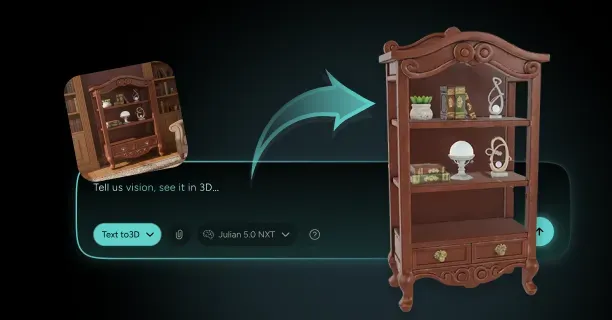
All models are automatically formatted to ensure seamless integration into The Sims franchise (The Sims 4 and future versions) and similar life-simulation video games. Game developers create these models by uploading reference photographs depicting real-world or conceptual furniture pieces, and Threedium’s AI reconstruction system transforms these images into game-ready 3D assets optimized for life-simulation video game environments.
The Threedium platform automates the entire image-to-3D-asset workflow, converting source photographs into production-ready furniture models that meet the specific technical requirements and performance constraints of life-simulation video games such as The Sims series.
Image Capture and 3D Reconstruction Process
Users initiate the workflow with image capture employing photogrammetry techniques, photographing the target furniture piece from all possible angles to achieve comprehensive geometric coverage necessary for accurate 3D reconstruction.
Required Photography Angles
- Front view
- Back view
- Left side view
- Right side view
- Top view
- Bottom view
Users should capture photographs from these six primary viewpoints to document every surface detail, texture variation, and structural element that defines the furniture piece’s complete geometry.
Users import these photographs into Threedium’s proprietary 3D reconstruction software engine, which produces a dense, high-polygon mesh (typically 100,000+ polygons) representing the furniture piece’s geometry with extreme spatial precision. The photogrammetric 3D reconstruction process:
- Analyzes pixel data from source images
- Identifies corresponding features across multiple photographs using feature-matching algorithms
- Extracts depth information to construct a complete volumetric representation
Mesh Optimization and Retopology
The high-polygon mesh undergoes retopology, a mesh optimization process that generates a simplified, low-polygon mesh suitable for real-time rendering in game engines like those powering The Sims 4 (Maxis/Electronic Arts, 2014) and future iterations of the franchise.
| Process Stage | Polygon Count | Purpose |
|---|---|---|
| Initial Scan | 100,000-500,000 | High detail capture |
| Retopology | 1,000-5,000 | Game optimization |
| Reduction Rate | 90-95% | Performance maintenance |
The retopology process strategically reduces polygon counts while maintaining the visual silhouette and preserving key geometric details of the furniture model, ensuring both performance and visual quality. Threedium’s retopology tools guarantee smooth gameplay performance when players furnish their virtual Sims homes with dozens of simultaneous furniture objects rendering in real-time.
UV Mapping and Texturing
The low-polygon mesh requires UV unwrapping, a 3D modeling technique that converts the three-dimensional surface geometry into a flattened two-dimensional UV map used for precise texture application and material assignment.
UV unwrapping combined with high-quality texturing establishes the visual fidelity that renders furniture models realistic and believable within life-simulation game environments like The Sims franchise, enhancing player immersion.
PBR Texture Maps Generated
- Color maps (albedo)
- Normal maps (surface detail)
- Roughness maps (surface finish)
- Metallic maps (material reflectivity)
These texture maps accurately determine how light interacts with diverse material surfaces including:
- Fabric upholstery
- Wood grain patterns
- Metal hardware
- Glass surfaces
The texturing process encompasses creating and applying photorealistic materials that accurately replicate the tactile qualities of real-world furniture surfaces, such as:
- The worn leather patina of vintage armchairs (pre-1960s era)
- The brushed steel finish of modern kitchen appliances
- The glossy lacquer coating of contemporary cabinetry (2010s-present design)
Export Formats and Compatibility
Threedium’s game-ready asset pipeline exports the completed furniture models in industry-standard game-compatible formats including:
- FBX (Filmbox)
- OBJ (Wavefront Object)
- GLTF (GL Transmission Format 2.0)
Texture resolutions are automatically optimized to meet the performance constraints of life-simulation games like The Sims franchise. The finalized 3D furniture asset exports in a game-compatible format that maintains:
- Material assignments
- UV coordinate layouts
- Polygon optimization data
Ready for immediate import into modding tools such as Sims 4 Studio or professional game development environments including Unity and Unreal Engine.
Living Room Furniture Options
Users can begin creating living room furniture focusing on diverse seating options:
- Sectional sofas (modular multi-seat configurations)
- Loveseats (two-person sofas)
- Recliners (adjustable-position chairs)
- Accent chairs (decorative single seats)
- Ottomans (footrests/storage)
- Bean bags (casual floor seating)
Each seating piece preserves accurate scale relationships (proportioned to Sim character models) that enable playable Sim characters to interact naturally with the furniture through pre-programmed sitting, lounging, and socializing animations integrated into The Sims game engine.
Complementary Living Room Pieces
- Coffee tables
- End tables
- Console tables
- Entertainment centers
These pieces feature surface areas precisely sized to accommodate both decorative objects and functional items such as televisions, lamps, and books according to The Sims’ object placement system.
Dining Room and Kitchen Furniture
Dining room furniture models encompass dining tables in multiple size variants ranging from compact two-seater configurations to expansive banquet tables that accommodate eight or more Sim characters, supporting diverse household sizes and social gameplay scenarios.
Dining Room Furniture Types
- Dining chairs (seating for tables)
- Bar stools (elevated counter seating)
- Kitchen islands (central prep stations)
- Buffets (serving storage)
- China cabinets (display storage)
- Serving carts (mobile serving units)
Kitchen furniture comprises both storage solutions and functional appliances:
| Storage Solutions | Appliances | Small Appliances |
|---|---|---|
| Base cabinets | Refrigerators | Coffee makers |
| Wall cabinets | Ovens | Toasters |
| Pantry units | Dishwashers | Blenders |
| Microwaves |
Each appliance model incorporates pre-defined interaction points (spatial coordinates and orientations) that allow Sim characters to perform cooking, cleaning, and food preparation activities through context-appropriate animations, integrating with The Sims’ skill-building and needs systems.
Bedroom Furniture Collection
Bedroom furniture that users create using Threedium’s platform encompasses beds in all standard sizes with customizable components:
Bed Sizes Available
- Single (39”×75”)
- Double (54”×75”)
- Queen (60”×80”)
- King (76”×80”)
Beds feature customizable headboards, footboards, and bed frames in diverse aesthetic styles ranging from minimalist platform beds to ornate four-poster Victorian designs.
Bedroom Storage Solutions
- Nightstands
- Dressers
- Armoires
- Vanities
- Wardrobes
These storage solutions offer functional storage that programmatically integrates with The Sims game’s clothing management and inventory systems, allowing Sim characters to store and retrieve garments and personal items.
Office and Study Furniture
- Computer desks
- Writing desks
- Office chairs
- Filing cabinets
- Bookcases
- Shelving units
These pieces enable Sim characters’ career advancement (business, tech, writing professions) and skill-building activities (logic, programming, writing skills) in The Sims gameplay.
Bathroom and Outdoor Furniture
Bathroom fixtures comprise essential elements for complete bathroom functionality:
- Plumbing elements: toilets, sinks, bathtubs, showers
- Vanity furniture
- Storage accessories: medicine cabinets, towel racks, storage units
Designers must ensure proper plumbing fixture placement and establish accurate interaction zones (spatial areas where Sims can stand/position themselves) that enable Sim characters to perform hygiene routines with correctly aligned animations.
Outdoor furniture encompasses pieces specifically designed for exterior environments:
- Patio sets
- Lounge chairs
- Hammocks
- Picnic tables
- Grills
- Fire pits
- Garden benches
These are constructed with weather-appropriate materials such as treated wood, powder-coated metal, weather-resistant wicker, and outdoor-grade fabrics.
Decorative and Specialty Items
Decorative furniture and accent pieces include:
- Display shelves
- Plant stands
- Coat racks
- Mirrors
- Wall art frames
- Clocks
- Sculptural objects
These contribute aesthetic personality and visual customization to Sim homes while increasing the environment score that affects Sim mood and happiness.
Lighting Fixtures
Lighting fixtures encompass diverse types with customizable properties:
- Table lamps
- Floor lamps
- Pendant lights
- Chandeliers
- Wall sconces
- Ceiling fans
Each features customizable light emission properties (brightness, color temperature, radius) that influence room ambiance and directly affect Sim mood states through The Sims’ environmental needs system.
Age-Specific and Specialty Furniture
Children’s Furniture
Users can design children’s furniture appropriately proportioned for younger Sim age groups:
- Cribs (for infants/toddlers)
- Toddler beds
- Toy chests
- Play tables
- Child-sized desks
These ensure proper scale relationships for age-specific animations and gameplay interactions.
Teen and Young Adult Furniture
Teen and young adult furniture (for Sim characters aged 13-25) encompasses:
- Gaming chairs
- Futons
- Beanbag chairs
- Space-efficient compact furniture
Specifically designed for small living spaces such as college dorm rooms and starter apartments, reflecting the lifestyle and budget constraints of younger Sim demographics.
Expansion Pack Specialty Items
Users can create specialty furniture tied to specific Sims expansion packs:
- Pet beds and feeding stations (Cats & Dogs expansion)
- Home gym equipment (Fitness stuff pack)
- Musical instruments
- Art easels (Get Famous)
- Science lab equipment (Get to Work)
- Hobby-specific workstations
Each enables unique activities and skill-building paths.
Design Styles and Materials
Historical and Design Movements
Available style variety encompasses diverse periods and movements:
- Victorian (1837-1901)
- Art Deco (1920s-1930s)
- Mid-Century Modern (1945-1969)
- Contemporary (1970s-present)
- Industrial (late 20th century)
- Scandinavian (minimalist Nordic design)
- Bohemian (eclectic global influences)
- Futuristic aesthetics (speculative future design)
Material Categories
Users can design furniture encompassing diverse material categories:
| Material Type | Examples | Texture Requirements |
|---|---|---|
| Solid Wood | Oak, walnut, maple | Diffuse, normal, roughness maps |
| Engineered Wood | Plywood, MDF, particleboard | Surface texture mapping |
| Metal | Steel, aluminum, brass | Specular, metallic maps |
| Fabric | Cotton, linen, velvet | Fabric weave patterns |
| Leather | Genuine, faux | Surface wear mapping |
| Glass | Tempered, frosted | Transparency channels |
Each material category requires specific texture mapping approaches to achieve authentic surface qualities and physically accurate light interaction when rendered under The Sims game engine’s real-time lighting system.
Technical Optimization
Threedium’s high-poly to low-poly optimization workflow preserves visual detail via:
- Normal mapping (encodes surface depth information in textures)
- Ambient occlusion baking (captures shadowing in crevices)
The system extracts fine surface details from the high-resolution photogrammetry scan (500,000+ polygons) including:
- Carved wood decorations
- Fabric stitching patterns
- Metal hardware engravings
- Realistic surface wear
These details convert into normal map and detail textures applied to the optimized low-polygon mesh (2,000-5,000 polygons), preserving visual fidelity while maximizing performance.
This optimization approach achieves the visual richness of highly detailed furniture while preserving strict polygon budgets (typically 50,000-100,000 total polygons per room) needed for smooth gameplay at 30-60 FPS when players populate entire Sims houses with dozens of custom furnishings rendering simultaneously.
Advanced Furniture Features
Modular Furniture Systems
Modular furniture systems you create allow players to combine individual components into customized configurations:
- Model sectional sofa pieces that connect seamlessly
- Kitchen cabinet modules that form continuous runs
- Shelving systems with interchangeable components
Each modular piece includes connection points and alignment guides that ensure clean assembly within the game’s building mode interface.
Interactive States
Produce furniture with interactive states:
- Closed and open cabinets
- Extended and retracted dining tables
- Folded and unfolded Murphy beds
- Raised and lowered toilet seats
Each state requires separate mesh variants or rigged components that transition smoothly during Sim interactions.
Swatches and Color Variants
Swatches and color variants multiply the utility of each furniture model you create. Establish a base mesh with neutral UV mapping, then generate multiple texture sets representing:
- Different wood finishes
- Fabric colors
- Metal treatments
- Decorative patterns
Performance and Technical Specifications
Performance optimization ensures your furniture models meet the technical specifications of life-sim games like The Sims.
Target Specifications
| Item Type | Polygon Count | Texture Resolution |
|---|---|---|
| Standard furniture | 500-3,000 triangles | 512x512 to 1024x1024 |
| Complex/hero pieces | Up to 5,000 triangles | Up to 2048x2048 |
| Small objects | 500-1,500 triangles | 512x512 |
Texture resolutions include mipmaps generated for distance-based level-of-detail rendering.
Collision and Interaction Systems
Create furniture with proper collision geometry:
- Simplified invisible meshes that define where Sims can walk
- Areas where they cannot pass
- Where they can place objects on surfaces
Collision meshes separate from visual meshes prevent performance overhead while ensuring realistic spatial interactions. Footprint definitions specify the grid spaces each furniture piece occupies within the game’s building system.
Sim Interaction Points
Sim interaction points you embed in furniture models define where Sims stand or sit when using each object:
- Chairs: sitting points at appropriate heights with forward-facing orientations
- Beds: multiple lying positions for sleeping, reading, and romantic interactions
- Kitchen counters: preparation points where Sims perform cooking animations
Position these interaction points during the modeling process, ensuring they align with Sim skeletal rigs and animation systems.
Themed Collections and Cultural Styles
Themed Furniture Collections
Produce themed furniture collections that maintain visual cohesion across multiple pieces:
- Matching bedroom sets
- Coordinated living room suites
- Unified kitchen designs
Collections share material palettes, decorative motifs, and construction details that create harmonious interior designs.
Cultural and Regional Styles
Cultural and regional furniture styles you model include:
- Japanese minimalism
- Mediterranean rustic
- American colonial
- French provincial
- Global contemporary designs
These reflect diverse aesthetic preferences and cultural authenticity.
Seasonal and Smart Furniture
Seasonal and Holiday Furniture
Seasonal and holiday furniture expands gameplay variety with themed pieces:
- Christmas trees and decorations
- Halloween props
- Birthday party furniture
- Seasonal outdoor equipment
Smart and Modern Features
Create furniture with embedded lighting including:
- Illuminated display cabinets
- Backlit headboards
- Furniture-integrated task lighting
Smart furniture integration supports modern gameplay mechanics:
- Desks with integrated charging stations
- Entertainment centers with cable management
- Furniture with built-in speakers or screens
Convertible and Multi-Function Furniture
Model convertible furniture that serves multiple functions:
- Sofa beds
- Desk-bed combinations
- Dining tables that convert to work surfaces
Each conversion state requires careful modeling to ensure both configurations appear functional and visually convincing.
Advanced Modeling Techniques
Wear and Damage States
Wear and damage states you can create show furniture aging over time:
- Faded fabrics
- Scratched wood
- Tarnished metal
- Structural wear
These variants add realism and support gameplay mechanics where furniture condition affects Sim mood and home value.
Career-Specific Furniture
Custom furniture for specific careers includes:
- Medical examination tables for doctor Sims
- Laboratory benches for scientist Sims
- Professional kitchen equipment for chef Sims
Scale and Proportions
Produce scale-accurate furniture by referencing real-world dimensions:
- Standard dining chairs: 18 inches seat height
- Dining tables: 30 inches tall
- King beds: 76 inches wide
Maintain these proportions to ensure Sim interactions appear natural and furniture fits logically within architectural spaces.
Concept Art and Non-Physical References
Our platform enables you to create furniture from concept art and illustrations when physical references don’t exist. Upload sketches, paintings, or digital renderings, and our AI interprets the 2D artwork to generate 3D geometry that matches the illustrated design intent.
This capability proves valuable for fantasy furniture, futuristic designs, and stylized pieces that don’t have real-world counterparts.
Material Properties and Lighting
Material property assignment defines how furniture surfaces respond to light:
- Specular highlights on polished wood
- Diffuse reflection on matte fabrics
- Subsurface scattering on translucent lampshades
Configure these material properties during the texturing phase, ensuring furniture appears convincing under the game’s dynamic lighting conditions across different times of day and room configurations.
LOD and Animation Support
LOD (Level of Detail) variants you generate provide multiple polygon-count versions of each furniture piece, with the game engine selecting appropriate versions based on camera distance and scene complexity.
Create furniture with animation support for objects with moving parts:
- Rocking chairs that rock
- Swivel chairs that rotate
- Drawer units with pullout drawers
Rigged components include bone structures that enable these movements while maintaining mesh deformation quality.
Transparency and Alpha Channels
Transparency and alpha channels handle furniture elements like:
- Glass tabletops
- Mesh chair backs
- Sheer curtains
These require careful texture setup to ensure proper rendering without performance penalties.
Integration and Metadata
Furniture Metadata
Furniture metadata you define includes:
- Catalog categories
- Price values
- Comfort ratings
- Environment scores
- Skill requirements
These integrate your custom models into the game’s economic and progression systems. Specify which Sims can use each piece, whether furniture provides skill-building opportunities, and how objects affect room ratings and Sim satisfaction.
Batch Processing and Modding Support
Batch processing capabilities let you convert entire furniture collections from image sets simultaneously, maintaining consistent quality standards and technical specifications across all pieces in a themed set.
Produce furniture optimized for modding communities by following:
- Established file structure conventions
- Naming patterns
- Package formats that mod managers recognize
This compatibility ensures your furniture models integrate smoothly with existing custom content libraries and don’t conflict with other player-created assets.
Cross-Generation Compatibility
Cross-generation compatibility allows you to create furniture that functions across multiple Sims game versions by adhering to the most restrictive technical specifications and avoiding version-specific features.