How Do You Generate Roblox-Ready 3D Models From Images?
You generate Roblox-ready 3D models from images by importing your reference image into specialized 3D modeling software, adjusting and optimizing mesh parameters for real-time rendering, and exporting an optimized asset that adheres to Roblox’s platform-mandated 10,240-triangle-per-mesh technical constraint. The 3D model generation workflow converts and processes 2D visual data into production-ready game assets utilizing photogrammetry reconstruction techniques, AI-powered 3D model generation, and manual mesh optimization processes.
Capture or create high-quality source images with enough visual information for accurate reconstruction. Structure-from-Motion (SfM) photogrammetry requires 20-200 overlapping images of a single real-world object to reconstruct and produce precise geometry and texture data. Each photograph captures the subject from a different camera angle, providing depth information for photogrammetry software to computationally calculate 3D spatial coordinates. Maintain consistent lighting across all photographs, avoiding shadows that introduce geometric mesh artifacts in the reconstructed 3D mesh model. Overlapping coverage ensures complete surface visibility, appearing in multiple photograph frames, which photogrammetry algorithms utilize to compute vertex positions and surface normal vectors.
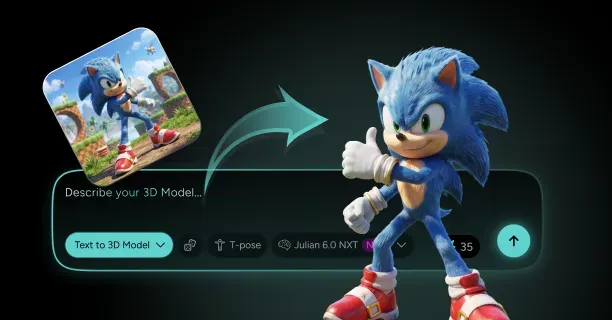
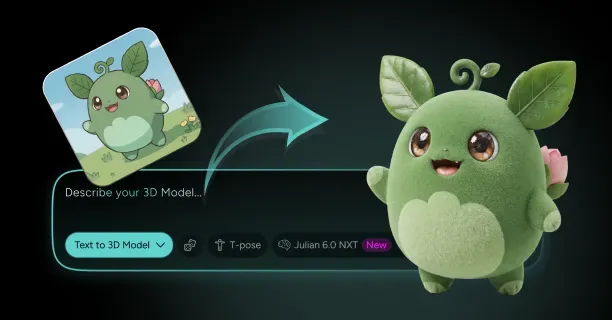
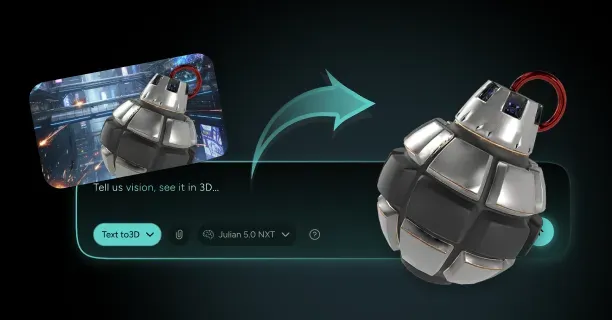
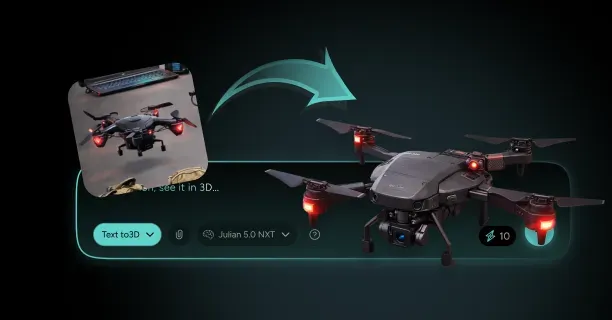
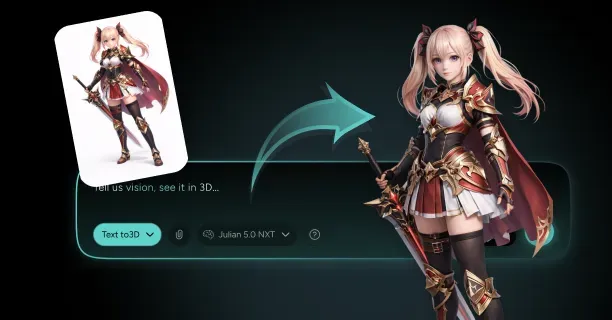
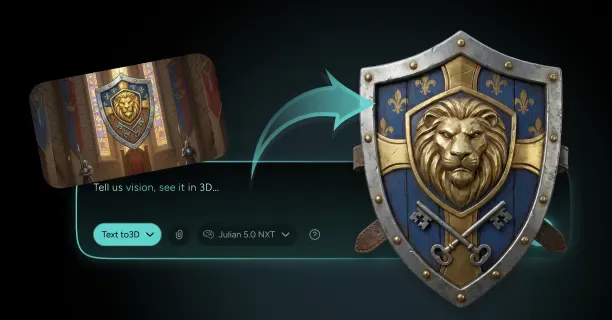
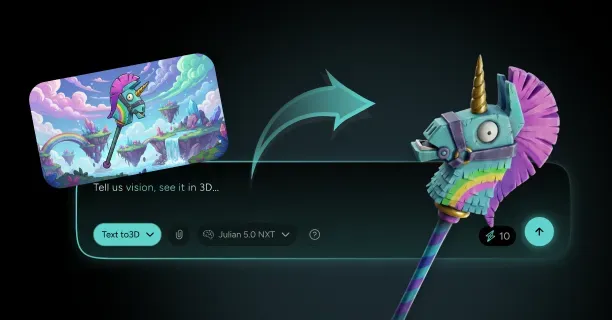
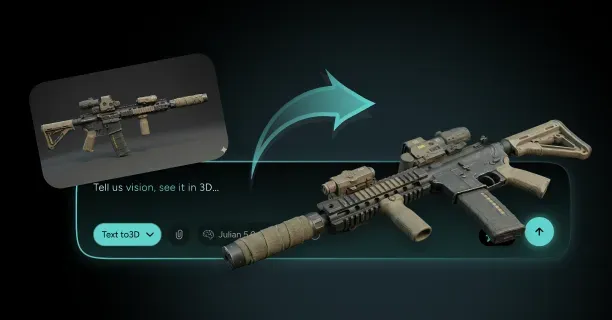
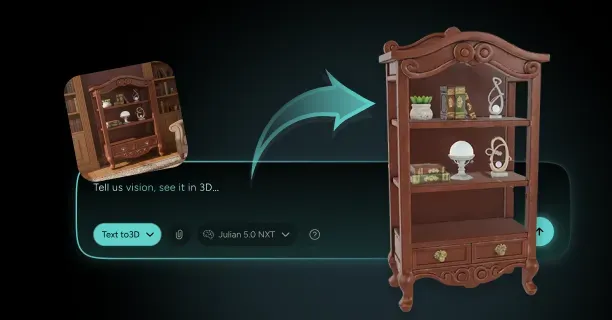
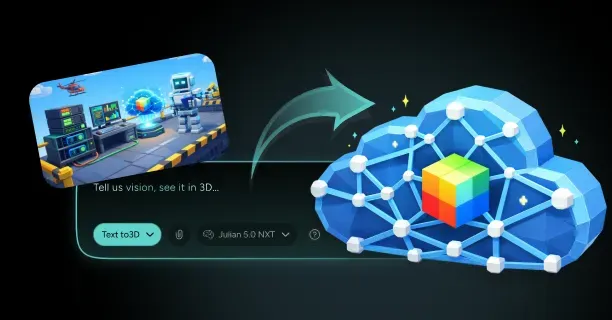
AI-powered 3D model generation requires only a single reference image in contrast to traditional multi-angle photogrammetry. Threedium’s proprietary Julian NXT AI technology platform processes and interprets the user’s input image to extract, infer, and computationally determine depth maps, 3D geometric structure, and texture/color information automatically. The Julian NXT AI system reconstructs hidden surfaces by training on:
- Anime-style character datasets
- Cartoon illustration datasets
- Video game character model datasets
This produces complete 3D meshes from front-facing character art. Input the user’s 2D character concept artwork, and the system generates a fully formed model with predicted rear-facing surface geometry, volumetric hair mesh structure, and fabric deformation and fold geometry preserving the original reference image’s visual style.
Photogrammetry reconstruction software analyzes and reconstructs from source images through Structure-from-Motion (SfM) computational algorithms that detect and match corresponding visual feature points across multiple photographs.
The photogrammetry software:
- Estimates and computes camera pose and position data for each photograph
- Builds a sparse 3D point cloud structure representing detected features
- Densifies the sparse point cloud into a dense polygonal vertex mesh containing millions of vertices defining 3D surface geometry
The photogrammetry reconstruction process generates a high-resolution polygonal mesh model that captures surface detail accurately but commonly surpasses acceptable triangle count for Roblox game engine’s real-time rendering system. Unoptimized photogrammetry scan outputs often exceed 200,000-500,000+ polygon counts, requiring mandatory retopology before Roblox Studio asset import. The photogrammetry-generated mesh incorporates photorealistic texture map data baked from source photograph images, maintaining RGB color values and surface detail/normal information in UV texture coordinate mapping space.
| Process Stage | Triangle Count | Performance Impact |
|---|---|---|
| Raw Photogrammetry | 200,000-500,000+ | Unacceptable for real-time |
| Optimized Mesh | <10,240 | Roblox-compatible |
| Final Export | Variable | Real-time ready |
Mesh retopology optimization process reconstructs the 3D model’s surface geometric structure with a performance-optimized triangle count compatible with real-time game rendering engines like Roblox. Transform high-density photogrammetry scan data into a clean quadrilateral polygon-based mesh topology that deforms smoothly and predictably during skeletal character animation and achieves optimal rendering performance. Create polygon edge loop flows following anatomical/organic form contours, strategically positioning 3D vertex points to preserve visual silhouette profile accuracy while minimizing total triangle/polygon count. Roblox Studio development environment enforces a maximum of 10,240 triangles per individual MeshPart, so 3D artists must implement careful polygon budgeting across all constituent mesh component parts. Allocate higher polygon density to:
- Facial feature regions (eyes, nose, mouth)
- Hand and finger models
Reduce polygon count in player-invisible geometry and low-visual-priority surface areas.
UV texture coordinate unwrapping process projects the optimized 3D mesh’s surface into 2D texture coordinate space (0-1 UV space), ensuring texture map images align precisely with 3D mesh geometry. Design UV island layout arrangements that:
- Reduce texture stretching/compression distortion
- Avoid UV shell boundary seams in player-visible surface areas
- Optimize texel-to-polygon density efficiency
Segment the 3D polygon mesh along UV seam edge cuts, flattening the 3D mesh surface like a 2D pattern/net template (like papercraft unfolding). Pack UV shell islands to occupy normalized 0-1 UV coordinate space completely, minimizing unused texture space that underutilizes texture image resolution/pixel density. Optimized UV coordinate unwrapping ensures a 1024×1024 resolution texture map renders high-frequency visual detail across the complete 3D character/object model without texture elongation distortion or texture squashing distortion.
Comprehensive 3D mesh optimization workflow satisfies Roblox platform-mandated technical specifications in addition to simple triangle count reduction.
Ensure outward-facing surface normal vectors, remove overlapping vertex points which cause GPU rendering artifacts, and verify that the optimized mesh contains no topologically invalid non-manifold edge/vertex configurations. Topologically invalid non-manifold edge configurations, where polygon faces share mesh edges with more than two faces, trigger asset import rejection errors in Roblox Studio development environment. Identify and remove:
- Orphaned/floating vertex points disconnected from primary mesh geometry structure
- Player-invisible internal mesh geometry
- Overlapping faces sharing the same geometric plane
Save the polygon-optimized 3D mesh model in Autodesk FBX file format or Wavefront OBJ file format, the primary file types Roblox Studio development environment supports for Roblox MeshPart instance objects. 3D export configuration parameters maintain model dimensional scale, spatial rotation/orientation, and object origin/pivot point to ensure the asset achieves correct spatial positioning within Roblox’s right-handed Y-up coordinate system. Include texture file path references in the FBX/OBJ export file or export standalone texture image files (PNG/JPG) for manual texture mapping assignment in Roblox Studio. The finalized 3D mesh export includes:
- Per-vertex RGB color attributes if lighting was pre-calculated
- Normal map texture references for high-frequency surface detail enhancement
- Material identification indices distinguishing character skin surfaces, fabric/garment materials, and equipment/ornament materials
Upload the optimized 3D mesh model into Roblox Studio development environment by transferring the FBX/OBJ mesh file through the Roblox Studio Asset Manager panel or placing the mesh file directly as a MeshPart instance object in the Roblox Studio 3D workspace/viewport. Roblox platform validation system checks uploaded 3D mesh files against platform-defined technical requirements, refusing files exceeding the maximum 10,240 triangle per-mesh constraint or containing invalid/incompatible geometric configurations. The imported 3D mesh model is instantiated as a MeshPart instance class, a Roblox object type classification linking to server-stored mesh asset data and enabling instance property modification capabilities. The MeshPart instance object is placed in the developer’s workspace with default neutral gray Plastic material, requiring texture map assignment and material property setup.
Assign textures and configure materials within Roblox Studio rendering engine to finalize game asset finalization workflow. The 2D texture map image, typically a base color/albedo texture image created during photogrammetry reconstruction process or AI-powered 3D generation, maps to the 3D polygon mesh using UV texture coordinates that were established during the UV unwrapping/mapping process. Transfer 2D texture image files to Roblox cloud asset management system, obtaining unique numerical asset identifiers referencing the MeshPart.TextureID property field. Roblox material property settings define rendered surface visual characteristics like:
- Specular reflection intensity
- Surface microsurface roughness
- Alpha transparency/opacity
Apply Roblox default material presets (Plastic material type, Metal material type, Fabric material type) or configure SurfaceAppearance instance objects enabling PBR rendering workflow with separate base color/albedo texture maps, surface normal detail maps, metallic property maps, and surface roughness maps.
Optimize unoptimized photogrammetry scan data through mesh decimation/simplification algorithms that intelligently decrease triangle/polygon quantity while maintaining perceived visual quality/accuracy. Mesh decimation algorithm evaluates surface geometric curvature, eliminating mesh vertex points from low-curvature planar regions while preserving mesh density in high-curvature feature-rich areas. Transfer fine geometric surface detail from the high-polygon source mesh onto RGB normal map textures mapped onto the polygon-reduced optimized mesh. The normal map baking technique encodes micro-scale surface details like:
- Textile fabric weave patterns
- Dermal skin pore structures
- Surface scratches/dents/irregularities
This produces photorealistic visual rendering within triangle count limitations.
AI-powered 3D model generation technology processes 2D character concept artwork, character design illustrations, or digital illustration art as input when generating Roblox-compatible 3D mesh assets from Japanese anime art style or Western cartoon art style reference images. Conventional Structure-from-Motion photogrammetry requires tangible physical objects or real photographable subjects, restricting application to pre-existing real-world items. Input a single 2D character portrait image, and the AI 3D generation system produces a fully-formed 3D character model with:
- Anatomically correct proportions
- Articulatable skeletal limbs
- Optimized game engine mesh topology
The AI deep learning system infers spatial depth perception from 2D visual interpretation signals like drawing line thickness variation, tonal shading/gradients, and object occlusion/layering, generating 3D volumetric geometric forms from 2D flat illustration artwork.
Adjust 3D mesh generation parameters during the AI model generation process to determine output model characteristics like triangle/polygon count density, artistic style accuracy/preservation, and character body proportion accuracy. Generation parameter configurations control whether the AI reconstruction system emphasizes precise geometric measurement accuracy or artistic style interpretation when interpreting visually unclear/ambiguous character features. Modify parameter adjustment sliders for geometric detail complexity level, trading off between modeling separate individual hair fiber strands versus creating reduced-complexity mesh geometry optimized for real-time rendering performance. The AI generation workflow generates 3D character models with optimized quadrilateral polygon topology suitable for skeletal rigging setup and character animation workflow, removing the need for manual mesh retopology process required for photogrammetry reconstruction outputs.
3D vertex coordinate precision controls how closely the generated final 3D mesh model corresponds to the source 2D reference image’s dimensional proportions/ratios and outline silhouette profile. Verify 3D mesh vertex positioning by superimposing the rendered 3D model view onto source 2D reference artwork, assessing spatial correspondence alignment at critical anatomical landmark points like:
- Eye positions
- Nose position
- Mouth position
- Skeletal joint locations (elbows, knees, shoulders, hips)
Alignment discrepancies/mismatches indicate problematic mesh regions requiring manual vertex/geometry adjustment or AI model regeneration with adjusted generation parameters. The optimized mesh topology structure incorporates polygon edge loop flows following anatomical muscle/joint deformation paths, facilitating realistic joint bending behavior at elbow joints, knee joints, and facial muscle regions during skeletal character animation.
Triangle/polygon allocation strategy influences perceived visual detail quality and real-time GPU rendering performance/frame rate across the complete 3D mesh model. Allocate higher polygon density to facial feature regions where players focus attention and subtle expressions need geometric support. Hand and finger models receive moderate detail to enable recognizable gestures, while the torso and limbs use simplified geometry that deforms smoothly without unnecessary complexity. Triangle budget management ensures the complete character assembly, including body, clothing, hair, and accessories, remains under Roblox’s import threshold when combined.
Validate the completed model through test imports into Roblox Studio, identifying visual artifacts, scale accuracy, and material rendering. The validation process reveals issues like:
- Inverted normals causing inside-out surfaces
- UV seams visible as texture discontinuities
- Missing faces creating holes in the mesh
Refine problem areas, re-exporting corrected versions until the asset meets quality standards. Performance testing in a live Roblox environment confirms the model renders efficiently across different device capabilities, from high-end PCs to mobile devices with limited processing power.
Configure collision geometry separately from visual geometry, often using simplified collision meshes approximating the model’s shape with fewer polygons. Collision meshes determine how the object interacts with player characters, projectiles, and environmental elements. Create collision boxes, spheres, or low-polygon hulls balancing accuracy with computational efficiency, preventing performance degradation from complex collision calculations.
Select texture sizes based on the model’s on-screen size and importance within your experience:
| Model Type | Recommended Texture Size | Use Case |
|---|---|---|
| Primary Characters | 1024x1024 or 2048x2048 | Close-up views |
| Background Props | 512x512 or smaller | Distant objects |
| Environmental Assets | Variable | Based on visibility |
Primary characters displayed prominently receive 1024x1024 or 2048x2048 textures showing crisp detail in close-up views. Background props and distant objects use 512x512 or smaller textures reducing memory footprint without noticeable quality loss. Texture compression settings in Roblox Studio automatically optimize uploaded images, but pre-compress textures in external software to control quality-size tradeoffs precisely.
Material assignment transforms the gray default mesh into a visually compelling asset matching your artistic vision. Layer multiple texture maps through SurfaceAppearance objects, combining:
- Color albedo with normal maps for surface detail
- Metalness maps for reflective properties
- Roughness maps for light scattering behavior
The PBR material system simulates realistic light interaction, making metals appear shiny, fabrics look matte, and skin display subtle subsurface scattering. Adjust material properties to achieve stylized rendering complementing Roblox’s visual aesthetic while maintaining performance.
Ensure the topology includes enough edge loops around joints when working with character models, allowing smooth bending without geometric collapse or stretching. The mesh weight painting process assigns vertex influence to skeletal bones, determining how each part of the geometry moves with character motion. Test deformation by posing the rigged character through extreme ranges of motion, identifying areas where the mesh pinches, collapses, or separates at joints.
The complete workflow from image to Roblox-ready asset combines automated processing with manual refinement.
Use AI generation or photogrammetry for initial mesh creation, apply retopology and optimization for performance requirements, and finalize materials and textures within Roblox Studio. Each step contributes essential data:
- Geometry from reconstruction
- UVs from unwrapping
- Textures from baking
- Materials from in-engine assignment
This produces a functional, visually appealing game asset. The process scales from simple props created from single images to complex characters requiring multiple texture sets and detailed topology planning.
What Are the Characteristics of Roblox-Ready 3D Models?
The characteristics of Roblox-ready 3D models are specific technical requirements established by the Roblox Engine, including mesh geometry standards, texture formatting specifications, file structure protocols, and rendering compatibility parameters across multiple device types.
3D asset creators must balance visual quality with performance optimization during the image-to-3D conversion process, ensuring that Roblox models function seamlessly across diverse hardware platforms, ranging from mobile phones with limited processing power to high-performance desktop computers.
The Roblox Engine enforces strict technical limits on: - Polygon density - Texture resolution
- Material assignment - File organization
These constraints determine whether an asset creator’s image-to-3D conversion will successfully import into the Roblox development environment.
Polygon Count Restrictions Define Performance Boundaries
According to Roblox Creator Documentation, each individual mesh object is restricted by a hard limit of 10,000 triangles, representing the maximum polygon count that the Roblox platform allows per mesh component.
The Roblox import process automatically fails for any mesh that exceeds the 10,000 triangle threshold, requiring developers to reduce the polygon count through mesh optimization before attempting re-import.
High polygon counts significantly degrade game performance on mobile devices, where processing power and memory resources are constrained compared to desktop platforms, making polygon optimization essential for cross-platform compatibility.
Developers can maximize visual detail within the 10,000-triangle budget by employing: - Strategic edge placement - Topology optimization techniques - Preserving silhouette clarity - Systematically eliminating unnecessary geometry
The 10,000-triangle count limit is enforced on a per-mesh basis, applying to each individual mesh object independently rather than to entire imported files, allowing multi-mesh imports where each component remains within the specified constraint.
| Import Specification | Limit | Notes |
|---|---|---|
| Triangles per mesh | 10,000 | Hard limit, import fails if exceeded |
| Meshes per file | 200 | Enables modular construction |
| File formats | FBX, OBJ | FBX preferred for complex assets |
According to Roblox Creator Documentation, a single import file can contain up to 200 individual mesh objects, enabling developers to construct complex scenes by strategically distributing geometry across multiple mesh components, each adhering to the 10,000-triangle per-mesh limitation.
Texture Resolution Caps at 1024x1024 Pixels
According to Roblox Creator Documentation, texture maps are restricted to a maximum resolution of 1024x1024 pixels per individual texture, representing the highest texture dimensions that the Roblox platform supports for optimal performance across diverse hardware configurations.
Textures exceeding the 1024x1024 pixel limit undergo automatic downscaling during the Roblox import process, resulting in quality loss and detail degradation as the importer forcibly reduces resolution to comply with platform specifications.
The Roblox platform supports Physically Based Rendering (PBR), a advanced rendering methodology that utilizes:
- Color maps - Define base pigmentation and albedo values
- Metalness maps - Determine metallic or dielectric material behavior
- Roughness maps - Control surface smoothness spectrum
- Normal maps - Simulate fine geometric detail through lighting calculations
Developers apply PBR texture maps through the SurfaceAppearance object, a Roblox instance class that attaches to MeshPart components and controls how light interacts with model surfaces, enabling realistic material rendering within the Roblox Engine.
Single-Material Assignment Constrains Mesh Structure
Each mesh object in the Roblox platform accepts only a single material assignment due to Roblox Engine limitations that prohibit multi-material mesh support, constraining how developers structure assets that require varied surface properties across different geometric regions.
Developers can circumvent this single-material restriction by strategically separating models into multiple mesh objects, with each mesh receiving its own material assignment.
A character model derived from a source image is strategically separated into distinct mesh components: - Head mesh - Torso mesh
- Accessory meshes
Each component receives its own SurfaceAppearance object configured with unique texture maps, enabling varied material properties across different anatomical regions despite the single-material-per-mesh constraint.
FBX and OBJ Formats Support Import Workflows
According to Roblox Creator Documentation, the platform supports two primary 3D file formats for asset import:
| Format | Best Use | Capabilities |
|---|---|---|
| FBX (Filmbox) | Animated content, complex scenes | Preserves hierarchical relationships, animations, materials |
| OBJ (Wavefront) | Lightweight, simple structure |
The FBX format preserves critical asset data including: - Hierarchical parent-child relationships - Embedded animation sequences
- Material assignments
This renders it superior to OBJ for rigged characters and multi-component assets created from images that require complex structural metadata.
Stud Unit System Defines Scale Standards
Model scale must remain consistent with Roblox’s proprietary stud unit system, where:
One stud equals approximately 0.28 meters in real-world dimensions according to Roblox Developer Community Standards
This conversion rate translates: - 1 real-world meter = approximately 3.57 studs - Adult humanoid figures = typically 5 to 6 studs in height
Incorrect scaling produces immediate usability problems that degrade player experience: - Oversized assets consume excessive screen space and obstruct visibility - Undersized models become difficult to select and interact with
- Mismatched proportions break visual consistency across different games
Non-Overlapping UV Maps Prevent Texture Bleeding
UV maps must maintain non-overlapping layouts for proper texturing functionality, ensuring that each polygon face occupies unique, dedicated space on the 2D texture layout without territorial conflicts.
Overlapping UV coordinates cause texture bleeding, a rendering defect where colors and details from one texture region appear incorrectly on geometrically distant surfaces, creating visual artifacts that significantly degrade asset quality.
Developers perform UV unwrapping through: - Strategic seam placement - Efficient island packing - Distortion minimization
CollisionFidelity Property Controls Physics Interactions
Collision geometry functionality operates through the CollisionFidelity property, a Roblox instance attribute that determines how the platform’s physics engine calculates spatial interactions.
The CollisionFidelity property offers three distinct settings:
| Setting | Performance | Accuracy | Best Use |
|---|---|---|---|
| Box | Maximum | Minimal | Background elements |
| Hull | Moderate | Moderate | Organic forms, characters |
| Default | Lowest | Precise | Interactive gameplay objects |
R15 and R6 Rigging Standards Enable Animation
Animated character models must adhere to either the R15 (15-joint) or R6 (6-joint) rigging standards to maintain compatibility with Roblox’s built-in animation system and avatar framework.
R15 Standard Features: - 15 body parts with individual joints - Detailed articulation for realistic movement - Joints for shoulders, elbows, wrists, hips, knees, and ankles
R6 Standard Features:
- Simpler 6-part structure - Joints only at shoulders, hips, and neck - Reduced complexity for stylized aesthetics
Edge Flow Topology Ensures Clean Deformation
Topology refers to the structure and flow of vertices, edges, and polygons on your 3D mesh, directly affecting how models shade under lighting and deform during animation.
Construct edge loops that follow natural contours: - Circling around joints - Flowing along muscle groups
- Defining facial features
Poor topology produces shading artifacts like: - Faceting (visible polygon edges) - Pinching (geometry collapsing at joints) - Stretching (unnatural elongation during deformation)
Normal Maps Simulate High-Detail Features
Normal maps fake the lighting of bumps and dents on surfaces without adding actual geometry, enabling you to simulate high-detail features from source images while maintaining low polygon counts.
Generate normal maps through baking, a technique where details from very high-poly models transfer onto texture maps of low-poly models.
Use normal maps to preserve fine details that would otherwise require prohibitively high polygon counts: - Facial features like pores and creases - Clothing textures like denim weave or leather grain - Hard-surface details like mechanical panel gaps
PBR Textures Define Material Physical Properties
Physically Based Rendering simulates how light behaves in the real world through specific texture maps defining surface physical properties:
- Metalness maps - Distinguish between metallic surfaces (colored light reflection) and dielectric surfaces (white light reflection)
- Roughness maps - Control surface smoothness, determining sharp mirror-like or diffused matte reflections
Extract material properties from reference images by analyzing surface characteristics: - Shiny leather receives low roughness values - Brushed metal gets medium roughness with full metalness
- Painted plastic uses zero metalness with varied roughness
Modular Construction Enables Complex Multi-Component Assets
The 200-mesh limit per import file encourages modular asset construction, where complex models separate into reusable components that assemble within Roblox Studio.
Design character accessories, environment props, and architectural elements as individual meshes that combine through positional relationships rather than merged geometry.
Modular construction benefits: - Update single components without re-importing entire assemblies - Mix and match parts to create variations - Optimize performance by selectively loading/unloading components
Distance-Based LOD Strategy Optimizes Rendering Performance
Roblox does not natively support automatic Level of Detail systems, but you implement performance optimization by creating multiple versions of image-derived models at different polygon densities:
| LOD Level | Triangle Count | Viewing Distance | Purpose |
|---|---|---|---|
| High-detail | 10,000 | Close-up | Maximum quality |
| Medium-detail | 3,000-5,000 | Typical gameplay | Balanced performance |
| Low-detail | 500-1,000 | Distant/background | Shape recognition |
External 3D Software Enables Advanced Asset Preparation
Prepare Roblox-ready models using external 3D software like Blender, Maya, or 3ds Max, which provide advanced modeling, texturing, and rigging tools unavailable in Roblox Studio.
Blender advantages for Roblox asset creation: - Zero cost - Extensive plugin ecosystem - Robust FBX export capabilities - Python scripting for automation
Configure export settings to match Roblox specifications: - Triangulate geometry - Embed textures - Apply unit scaling - Confirm bone hierarchies follow R15 or R6 naming conventions